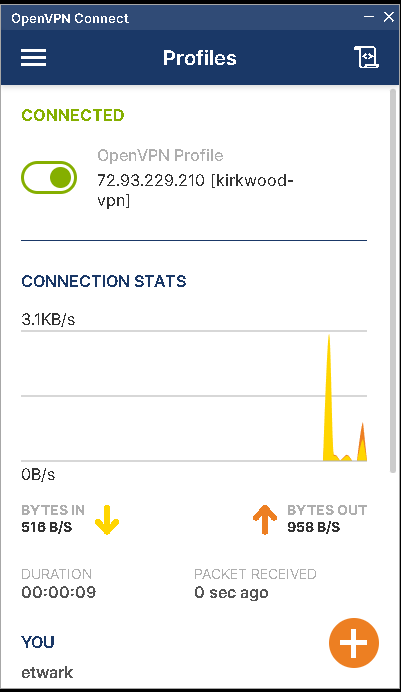
OpenVPN should be open after installing it. If not, you can launch it from your start menu.
Click on the "Upload File" tab
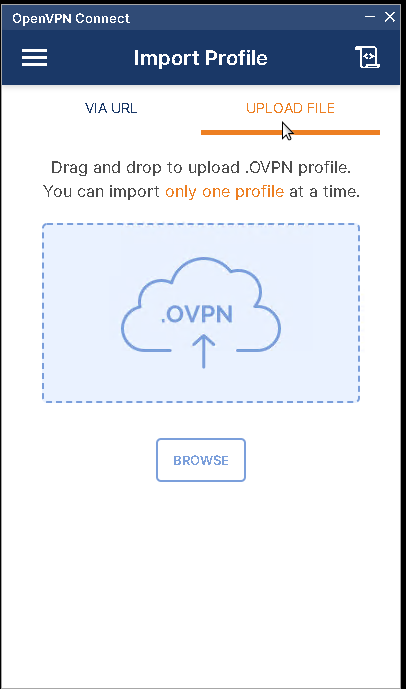
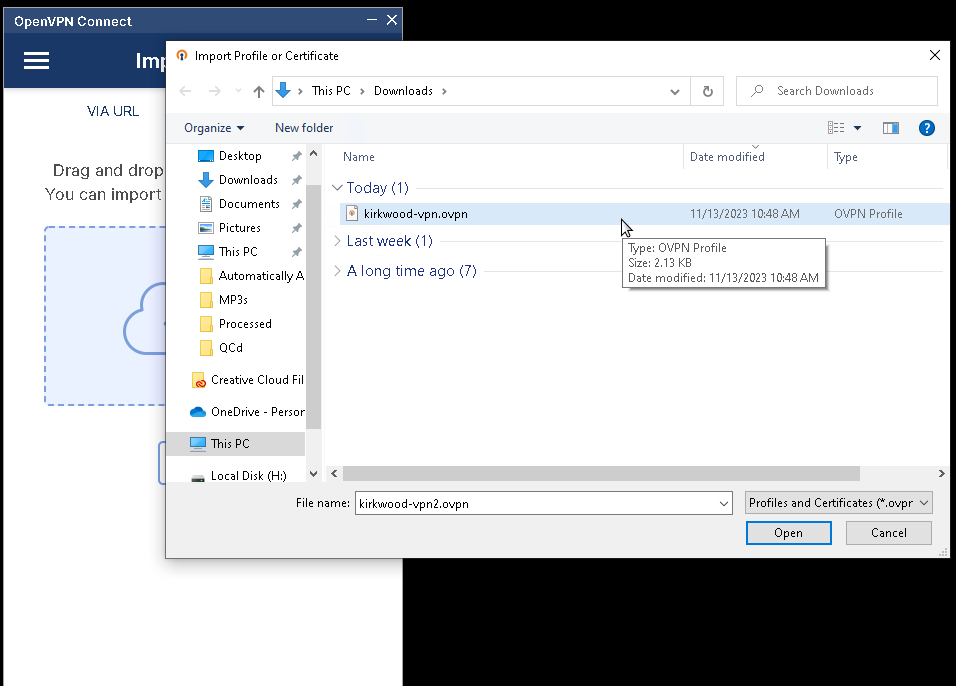
Click Browse and find the file you downloaded in Step 1. It will be called kirkwood-vpn.ovpn
The screen should now look like the image below. A field for "Username" is visible and a checkbox to "Save Password"
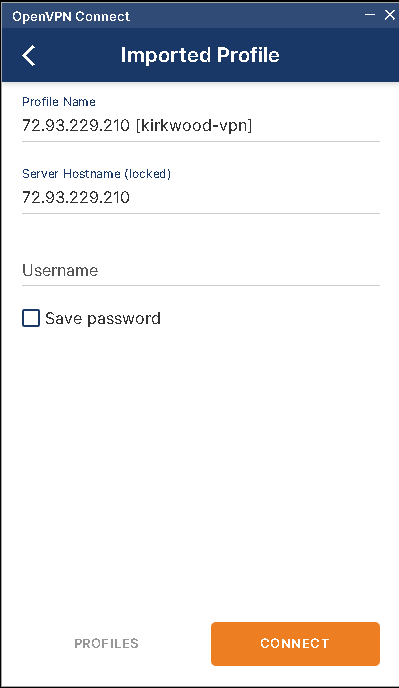
Enter your Windows username. Click the "Save Password" checkbox and enter your Windows password
In the Profile Name field, you can name your connection something like "Kirkwood VPN" or leave it as is
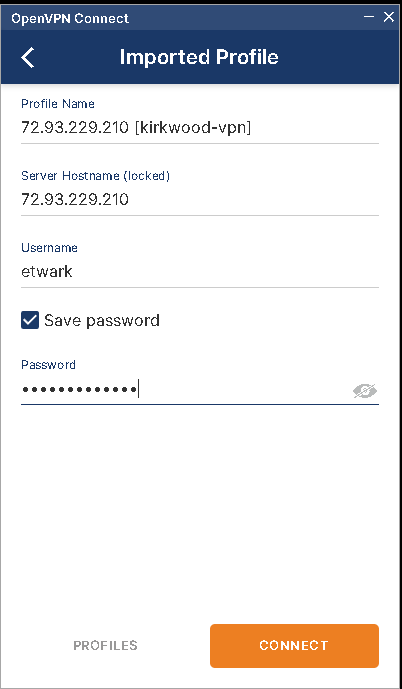
Click CONNECT. Your cell phone will prompt you with a DUO alert. You must press "Yes" to be connected.